Gadgets

Unresponsive iPhone 4 Home Button

The iPhone’s home button had been rather unresponsive for a month or two. On standby mode, when I press it sometimes it takes some time before the screen lights up. Sometimes it doesn’t at all and I have to press it again, harder. The same unresponsiveness happens when I try to exit out of an application or try to launch the fast app switcher.

At first, I thought it’s just dust and lint so I blasted air through the available openings in the hope of dislodging any that may have accumulated. That didn’t work at all. I was starting to fear that I need to have the button replaced. But today, I found a possible solution here and here:

  1. Open a built-in application
  2. Press and hold the power button until the slide to shutdown swipe bar appears.
  3. Release the power button
  4. Press and hold the home button lightly until screen returns to icon screen

It does seem to work at first, but probably psychological, because soon it seems the button was back to its old unresponsive ways.

So I kept looking and I found one that does make sense here. I have my Accessibility triple-click Home button setting enabled. I figure that with this enabled, the OS will wait just a millisecond more to see if there’s an upcoming third click before responding. Turning off triple click improved responsiveness. Now how to shorten the double-click wait…
Crumpler Sale

I heard about the September 9 to 18 Crumpler sale from A Bugged Life. I’ve had a previous-generation Crumpler 5 Million Dollar Home camera bag for a while now and I am very happy with it. I use it for carrying my basic photo gear and even  as a diaper bag when going out with Jeanne. Unfortunately, fitting the iPad in it is a rather tight proposition. So I’ve been thinking of getting a bigger bag and the sale was just the final excuse I needed. We dropped by the Crumpler store and checked out the bags. After a while I settled on a 6 Million Dollar Home. Its configurable partitions can be configured to create a small compartment that fits the iPad well. While at it, I got Michelle a Skivvy for her upcoming 13″ work laptop.

Gadget Day

I’ve been trying to get Mac OS X Lion from the Mac app store for the longest time. Unfortunately, the software distribution system needs a bit of work. They should have used a reliable distribution system like BitTorrent. So yesterday, I finally threw in the towel and asked Alex if I can visit him and download off his wired network. He did one better, he offered to download and give me the update. In a few hours, we met up and bought blank DVDs, and then headed to Racks for lunch. We were joined by James who was in the area.

After a quick lunch, the gadgets started coming out. Alex brought out an MacBook Pro for burning the OS X Lion files to the blank DVDs. Then the discussion turned to Android. James got out his Samsung Galaxy Tab and Alex his Coby Kyros tablet. He also got out and demoed his rooted Nook. James then got out his Nook and Alex rooted it. While waiting for all the burning and rooting to complete, James showed us pics of Jem and his twins on his iPod Nano. And of course, everyone had phones. James had his Ericsson while Alex and I had iPhones. But I was decidedly the most ungadgety that day.

iOS DLNA Players

I though I’d update my iPhone DLNA Players roundup.

I’m a fan of Digital Living Network Alliance (DLNA) because of its promise of using standards-based technology to make it easier for consumers to use, share and enjoy their digital photos, music and videos. When I got my Buffalo Linkstation, I started streaming movies and music from it to the Playstation 3. But I had to stay in front of the TV.

When I got the iPhone 4 and later the iPad, I got media players that I can use anywhere in the house. I was lucky enough to be able to get VLC from the App Store while it was available. However, it meant copying files using iTunes to the iPhone. Somewhat, archaic to say the least and definitely a far cry from what’s possible with DLNA. So I went around searching for a DLNA player. Here is the result of my research.

Read More

Capacitive Pen

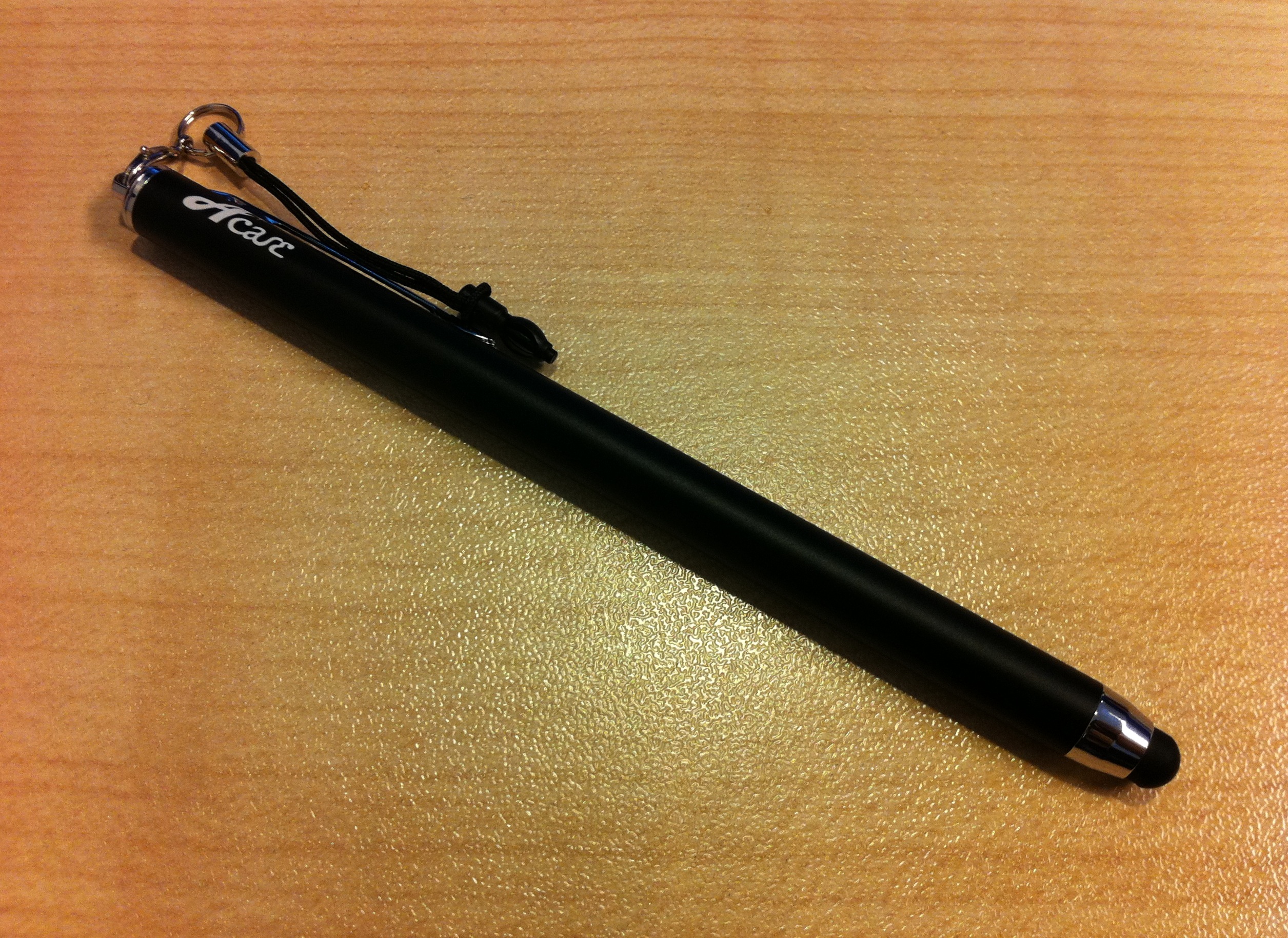
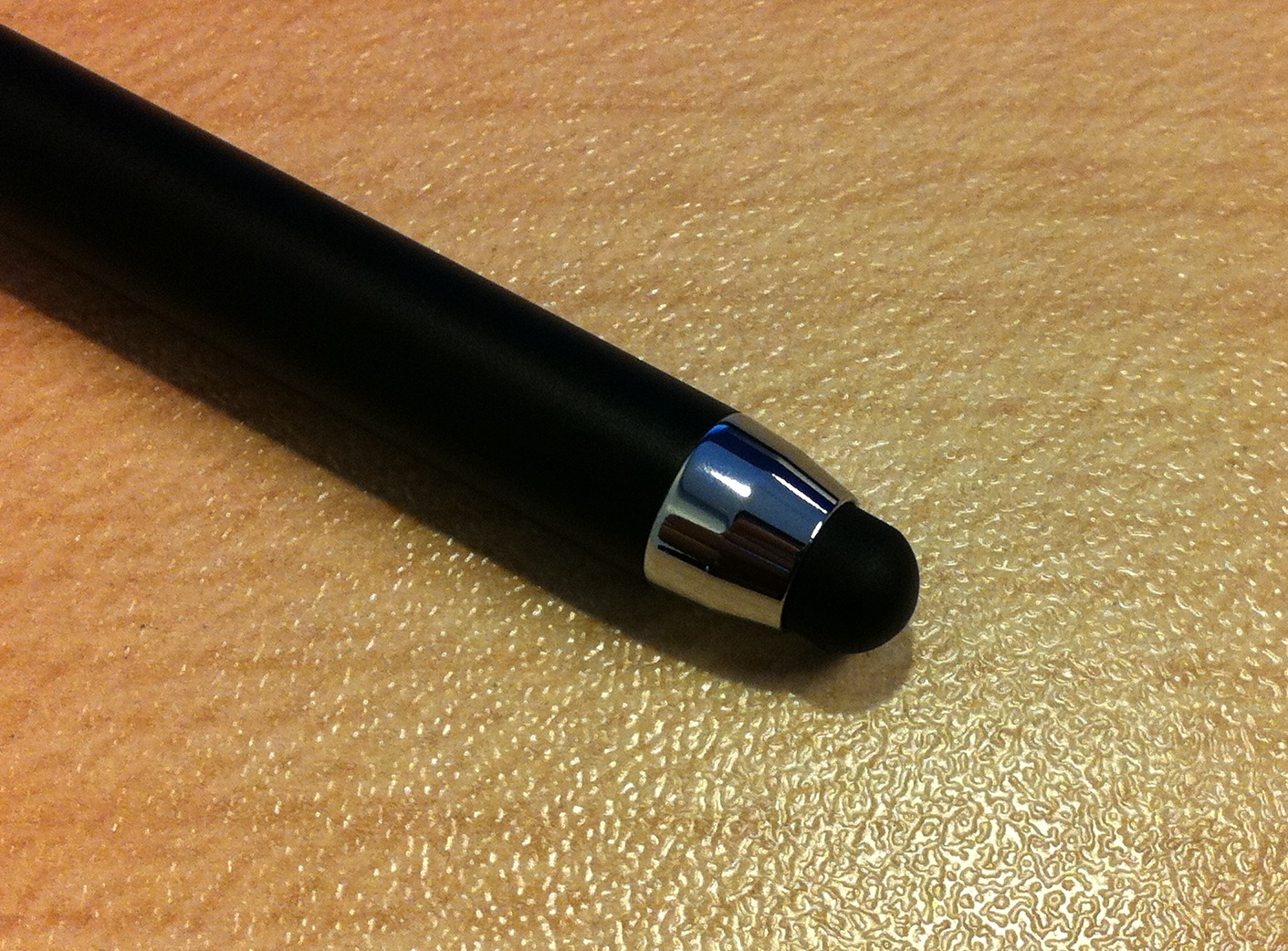
One of Jeanne’s favorite iPad apps is a drawing and painting app. It saves on paper and minimizes the risk of her writing on other things. Unfortunately, unless it’s finger painting, drawing and painting using fingers doesn’t exactly train her on the motor skills for actual drawing, painting, and eventually writing. Enter the capacitive pen. I’ve been planning to get one for some time. So it was quite timely when James gave me one from his trip to the US. Thanks, James!

Only problem is that there are bits of metal on the pen. So to minimize chances of it scratching the screen, I was forced to install a screen protector. Now that was a chore! It took me 5 tries before I was satisfied, i.e. the display area is clear of dust and bubbles. Even so, there were still some dust specks here and there. But since they were on the border, I can overlook them.